Saving, Exporting, and Sharing
Saving your work
Auto-save
Your design is automatically saved to your browser every time you make a change. If you accidentally close the tab, just reopen the Card Designer — your work will be waiting.
Save to file
For a more permanent backup, click Save Project in the export section of the right panel. This downloads a .ecard file containing your entire design, including all images and stickers.
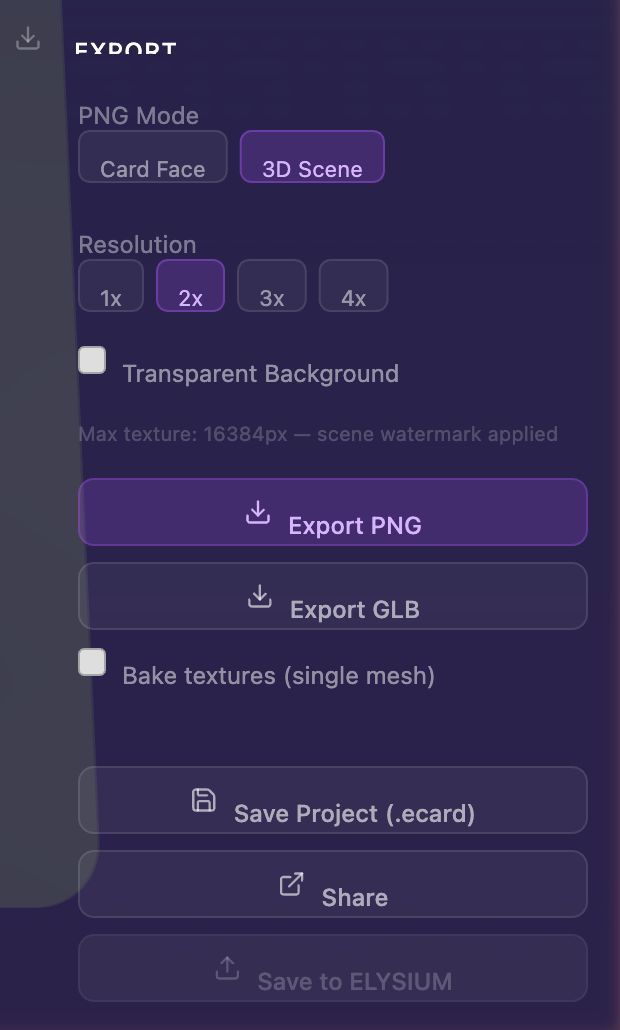
To reload it later, just drag the .ecard file onto the Card Designer landing page or use the "Load Saved Project" option in the setup wizard.
Auto-save uses your browser's local storage. If you clear your browser data, it's gone. Always save to a .ecard file if you want to keep your work safe.
Exporting your card
As an image (PNG)
In the Export section of the right panel, choose PNG export:
- Card Faces mode — Exports the flat artwork of the front or back face. Best for printing.
- 3D Scene mode — Exports the full 3D scene with lighting and effects. Best for sharing online.
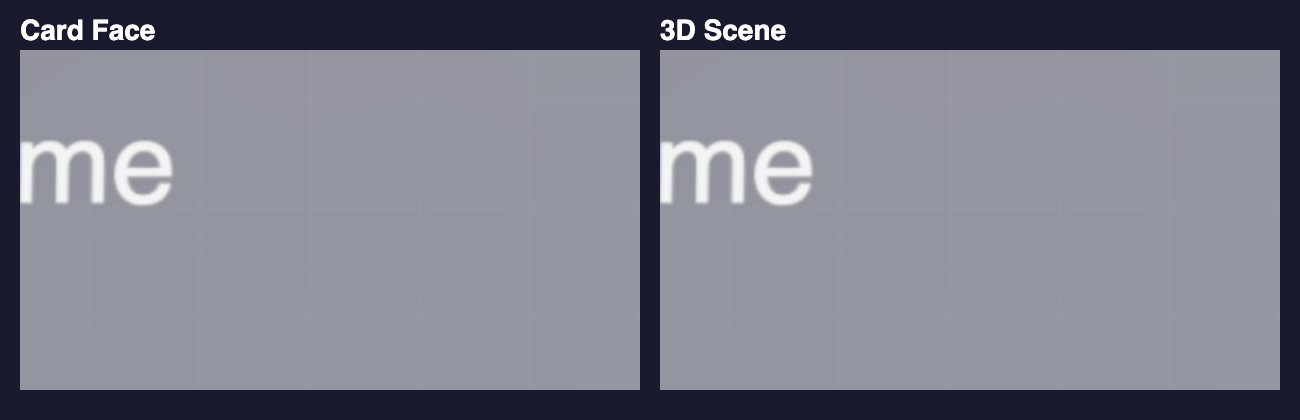
For print-quality output, use Card Faces mode at 4x resolution — this gives you 300 DPI at the card's actual size.

As a 3D file (GLB)
Choose GLB export to get a 3D file you can use in AR experiences, 3D viewers, or game engines like Unity and Unreal.
Bake Textures toggle:
- On — Flattens all layers into a single texture per face. Best for compatibility with other tools.
- Off — Keeps all layers as separate meshes. Best if you plan to edit it later in ELYSIUM.

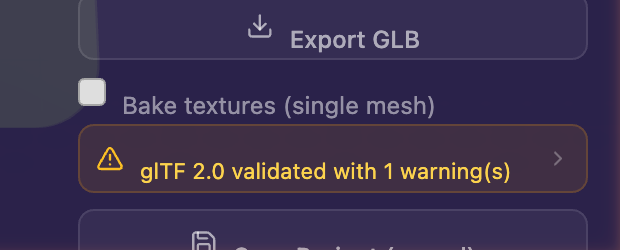
The export process has a few phases (Preparing, Exporting, Validating, Done). If validation finds errors, you'll see them listed — try enabling Bake Textures to resolve most issues.
Sharing your design
Click the Share button in the export panel to generate a preview link. Anyone with the link can view your card in a full-screen 3D viewer — complete with camera presets, card flipping, and audio playback.
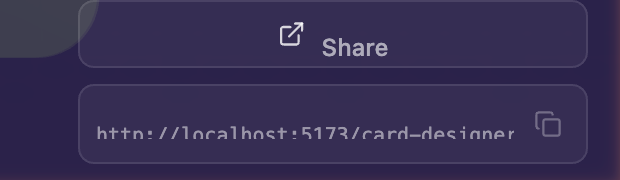
Click the copy icon to grab the link and share it wherever you like.

In the current version, share links only work on the same browser and device where they were created. Cross-device sharing is coming in a future update.